

In Nigeria today, the rising cost of brand-new laptops has pushed many consumers towards fairly used or “second-hand” systems. While these pre-owned devices offer a more affordable option, many buyers end up with laptops that barely last three hours on battery, despite paying between ₦150,000 and ₦300,000 ($90-$190 at $1/₦1,600) or more.
One of the most common mistakes buyers make is asking, “How strong is the battery?” without actually checking the battery health themselves. In reality, battery degradation is a major issue with used laptops, and ignoring it could mean spending a lot of money on a device that’s practically useless without constant power supply.
In this guide, we’ll show you how to check battery health on any Windows 10 or Windows 11 laptop, whether you’re buying a UK-used system or you simply want to check the health of the laptop you already own.
Why checking battery health matters
Whether you’re a student, gamer, remote worker, or tech entrepreneur, a healthy battery is key to mobility and productivity especially in a country like Nigeria where power outages are common. A laptop that can’t last long without being plugged in is a liability.
Checking battery health before you buy helps you avoid regrets. And if you already own the laptop, it helps you plan ahead before the battery fails completely.
Method 1: How to generate a battery health report using Windows PowerShell or Terminal
This method is built into all Windows laptops and gives you a detailed, technical report on battery performance over time. Here’s how to use it:
1. Step 1:
Right-click the Start Menu.
- On Windows 11: Select Terminal (Admin)
- On Windows 10: Select Windows PowerShell (Admin)
2. Step 2:
Click Yes if a security prompt appears.
3. Step 3:
Type the following command and press Enter:
- powercfg /batteryreport /output “C:\battery-report.html”
4. Step 4:
- Open File Explorer (press Windows + E)
- Navigate to This PC > Local Disk (C:)
- Look for a file named battery-report.html
- Double-click the file to open it in your browser.
If you don’t see it immediately, use the search bar in File Explorer to search for ‘battery-report.html’.
5. Step 5:
Once opened, the report will display:
- Installed Batteries – Basic information about the battery
- Cycle Count – How many full charge cycles the battery has gone through (too many cycles may indicate an ageing battery)
Design Capacity vs Full Charge Capacity:
- Design Capacity = what the battery could originally hold
- Full Charge Capacity = what it can currently hold
If the full charge capacity is significantly lower, the battery is worn out.
Step 6:
Scroll to view these key sections:
- Recent Usage – Shows battery drain over time
- Battery Capacity History – Tracks capacity decline
- Battery Life Estimates – Compares current battery life to when the laptop was new
Method 2: Use a free app – Pure Battery Analytics
For users who prefer a simpler, visual option, the Pure Battery Analytics app on the Microsoft Store is a great alternative.
How to Use It:
- Open the Microsoft Store on your laptop
- Search for “Pure Battery Analytics” and install it
- Open the app and view:
- Battery Design Capacity
- Full Charge Capacity
- Remaining battery life
- Battery wear level
- Real-time usage analytics
Bonus: What else to check before buying a used laptop
Battery life is only part of the equation. Before handing over your money for a UK-used laptop, make sure to inspect the following components:
- Keyboard – Are all the keys working?
- USB & Charging Ports – Do they connect and detect devices properly?
- Touchpad – Is it responsive and accurate?
- Screen – Any dead pixels, cracks, or flickering?
If you already own a laptop…
Monitoring battery health is part of good maintenance. Here are some tips to help prolong your battery’s lifespan:
- Avoid overcharging. Let the battery drop to around 20–30% before recharging occasionally.
- Keep your laptop away from dust, heat, and water.
- Clean the fan vents periodically to prevent overheating.
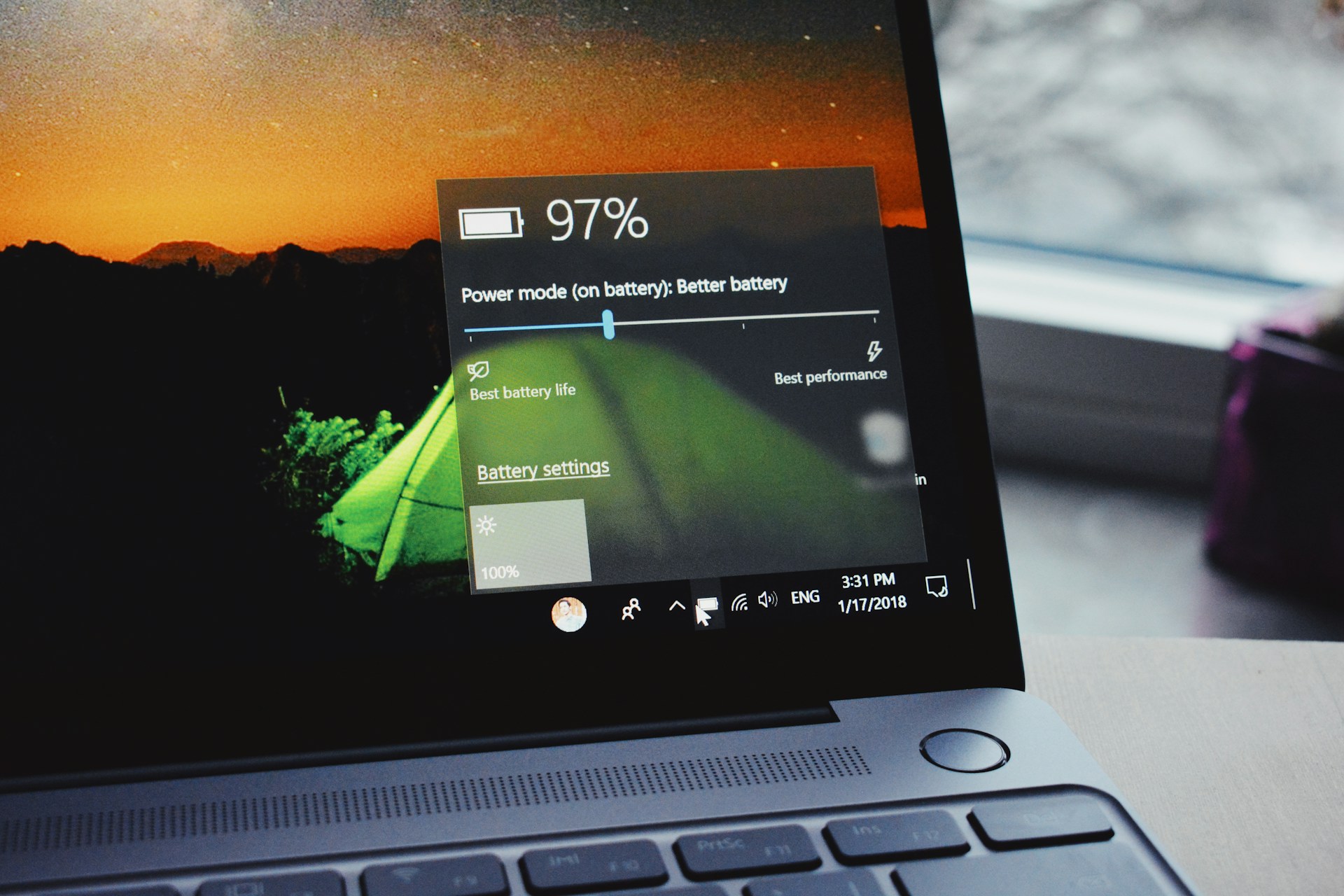
- Use Battery Saver mode when running on power.
Final thoughts
Don’t rely on what sellers say—check for yourself. Whether you’re buying a used laptop or maintaining the one you already own, regularly checking your battery health can save you from costly surprises and downtime.