


Switching between different Artificial Intelligence (AI) chatbots or agents can feel like moving into a new house. Many users are eager to try Anthropic’s AI assistant, Claude, because it proves helpful in assisting with tasks. However, the biggest hurdle for users might be the thought of starting from scratch.
The hesitation to switch often boils down to the mental exhaustion of re-introducing yourself. Over months of use, AI chatbot ChatGPT learns your profession, your writing tone, your past projects, and your specific preferences through its memory feature. Teaching a new AI tool those exact details all over again feels like a tedious chore.
Fortunately, you don’t have to lose that tailored experience. You can seamlessly migrate your digital history into Claude by exporting your ChatGPT data.
This allows you to leverage multiple AI tools simultaneously without wasting time rebuilding your profile from the ground up. This article breaks down the process in 4 easy steps.
4 steps to transfer your ChatGPT memory to Claude
1. Request your ChatGPT data export
The migration process begins by retrieving your accumulated data from OpenAI, the parent company of ChatGPT.
Instead of copy-pasting individual chat histories, you can request a comprehensive archive of your account’s interactions.
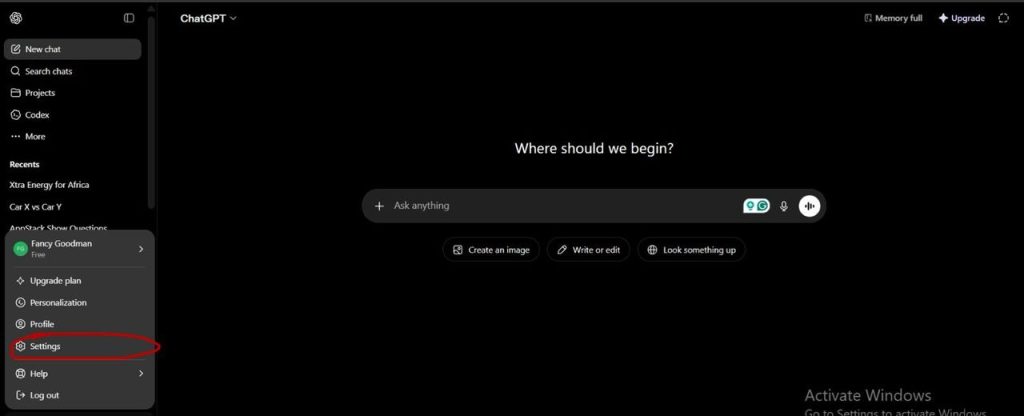
How to do it: Open ChatGPT > navigate to your profile icon in the bottom-left corner > click on “Settings”.
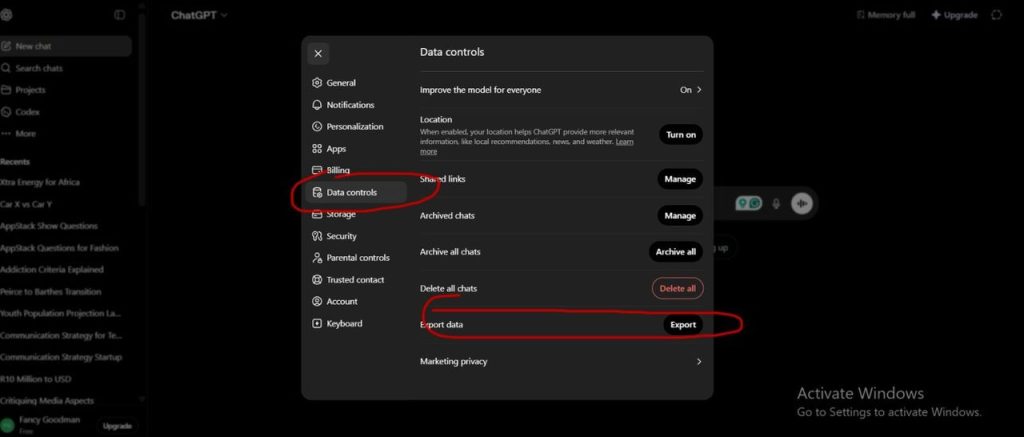
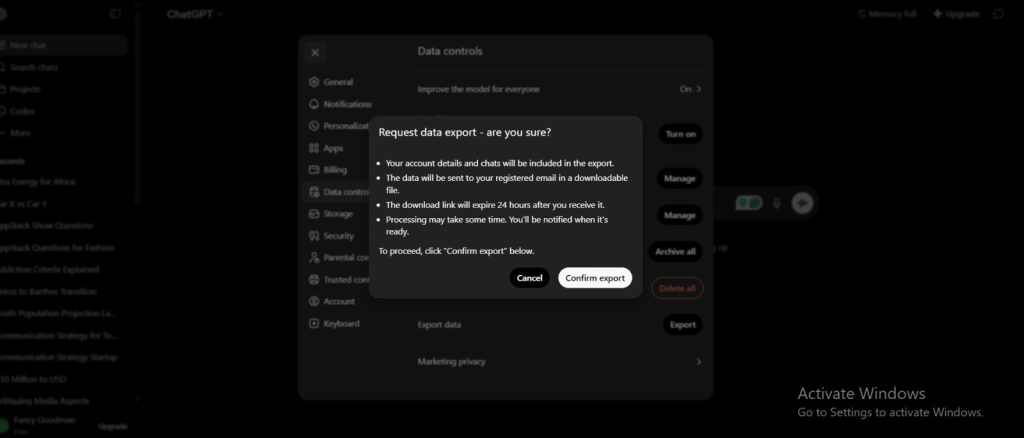
From the menu, select “data controls” > locate the “export data” option. Then confirm the request to initiate the export.
2. Download your data package from your email
OpenAI will compile your entire conversation history into a downloadable ZIP file. This archive contains files like your chat history, message feedback, and basic account information.
Note that ChatGPT’s memory — the stored preferences and habits it has learned about you — is separate from your conversation history and is not included as a clean, transferable file in this export.
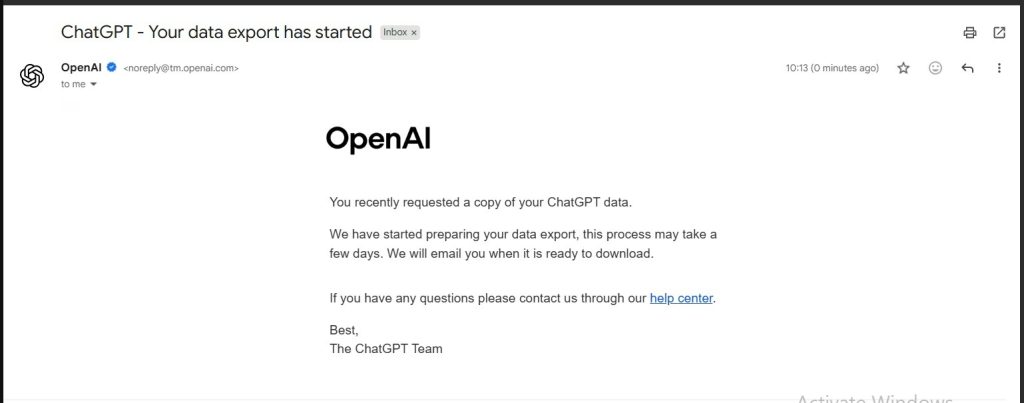
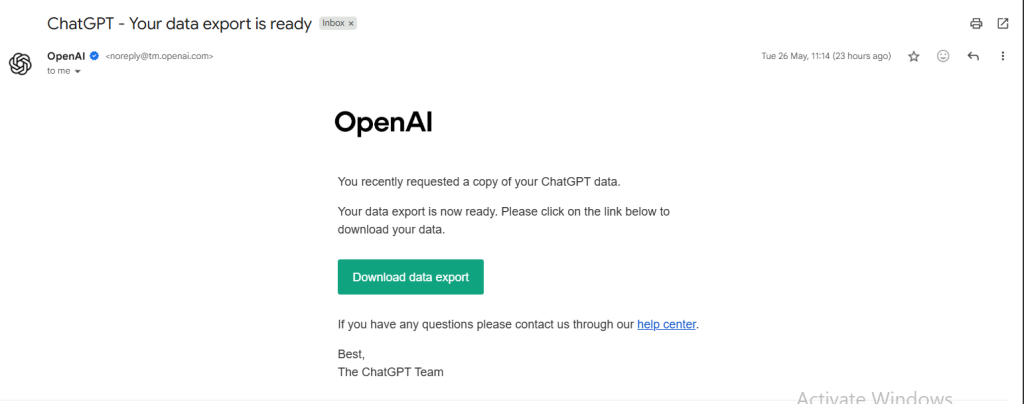
How to do it: Check the email address associated with your OpenAI account. You will receive a download link once the file is ready.
Note that this delivery can take up to seven days, depending on the size of your data history and your network speed. Download the ZIP file to your computer once it arrives.
3. Extract your memory summary from ChatGPT
Anthropic provides a dedicated import tool that transfers your stored preferences, habits, and context from ChatGPT directly into Claude’s memory system. The process starts with a special extraction prompt you paste into ChatGPT.
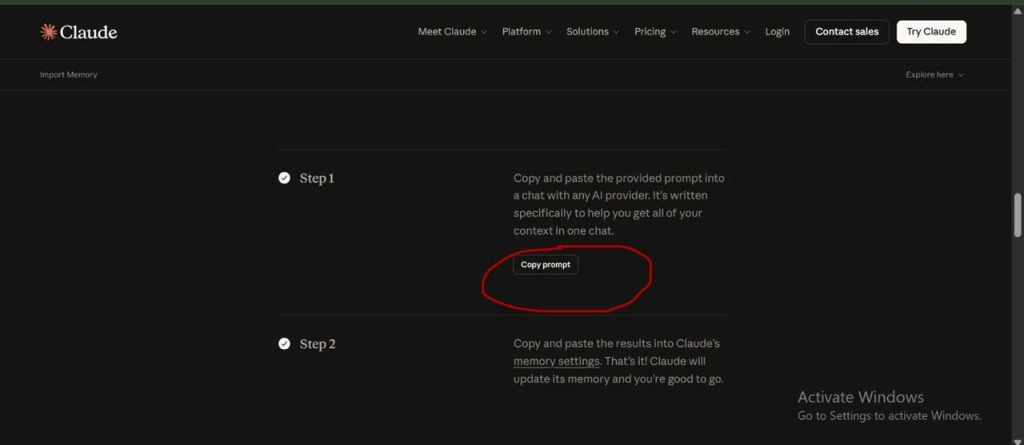
How to do it: Go to Claude’s memory import interface and copy the extraction prompt Anthropic provides. Then open ChatGPT and paste the following prompt into a conversation:
"I'm moving to another service and need to export my data. List every memory you have stored about me, as well as any context you've learned about me from past conversations. Output everything in a single code block so I can easily copy it. Format each entry as: [date saved, if available] - memory content. Make sure to cover all of the following — preserve my words verbatim where possible: Instructions I've given you about how to respond (tone, format, style, 'always do X', 'never do Y'). Personal details: name, location, job, family, interests. Projects, goals, and recurring topics. Tools, languages, and frameworks I use. Preferences and corrections I've made to your behaviour. Any other stored context not covered above. Do not summarise, group, or omit any entries. After the code block, confirm whether that is the complete set or if any remain."ChatGPT will generate a structured summary of everything it knows about you. Copy that output.
4. Paste your memory summary into Claude
The final step is bringing your extracted memory into Claude using Anthropic’s import tool, which applies it directly to Claude’s memory system — not just a single project.
How to do it: Return to Claude’s memory import interface and paste the output you copied from ChatGPT. Claude will process it and store your preferences, habits, and context so they apply across your conversations automatically, with no re-introduction needed.
Optional: If you also want Claude to reference your old ChatGPT conversations specifically, you can create a Claude Project, upload the “conversations.JSON” file from your ZIP archive, and use it as a reference document within that project. Keep in mind this is different from Claude’s memory system; it only applies within that project, not across all your chats.
Conclusion
This process isn’t about choosing one AI over the other or abandoning ChatGPT. Instead, it equips you to use both platforms dynamically, ensuring you get the best results out of whichever tool fits your immediate task.